Create a routines overview
Build a browsable Routines page with cards linking to your independent routine pages.
Use Routine library for the overview and Routine builder inside each destination page. Finish at least one routine page first.
1. Create the overview page
- Open Online Store → Pages → Add page and name the page Routines.
- Keep it Hidden while setting up.
- Select routines under Template and save. The singular routine template is for one complete routine; the plural routines template is the directory.
- In the theme editor, open Pages → routines and preview the actual Routines page.
2. Link a card to each routine page
Open Routine library. Add one Routine card per destination, up to five. For each card:
- Select its Routine page.
- Enter Title, Routine goal, and Frequency.
- Optionally choose an Image. Otherwise the card uses the first preview product’s image. Choose distinct images when routines share a first product.
- Choose Product source and configure its preview products as described below.
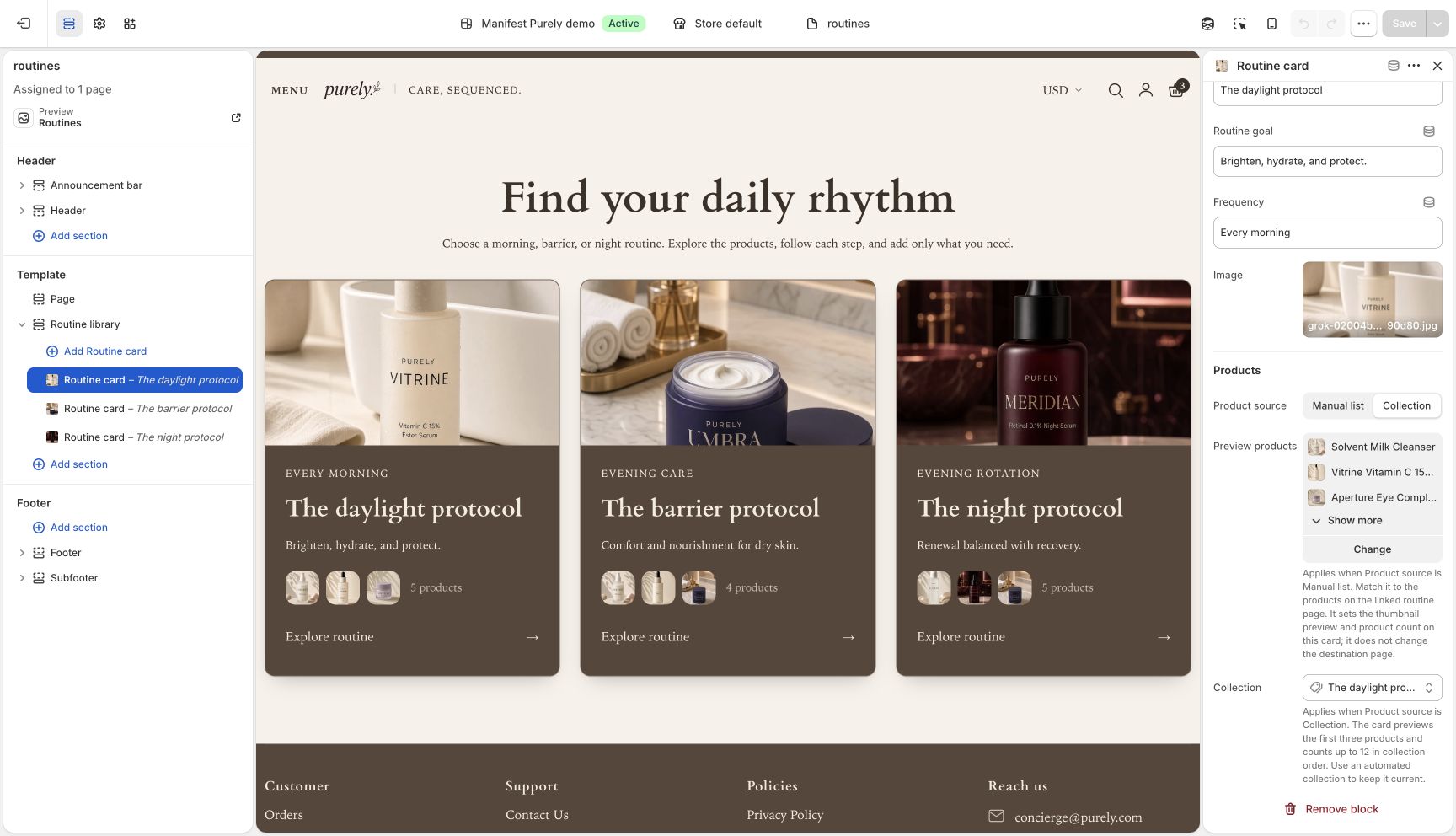
The page picker controls where Explore routine goes. The product source controls what the overview card previews. These are separate settings.
3. Choose manual previews or a collection
| Product source | What to set | What it controls |
|---|---|---|
| Manual list | Select Preview products in the intended order | This card’s product thumbnails and count |
| Collection | Select Collection, and set its product sorting in Shopify admin | The same preview, using the first 12 products in collection order |
Neither source fills or changes the destination Routine builder. Select products in the builder’s own Product steps and keep the preview aligned with them. With Collection selected but no collection chosen, the card falls back to Preview products.
If order matters, set the collection’s sorting to Manually and arrange its products deliberately. An automated collection can change when tags or rules change; review the linked routine whenever its membership changes. For a page with alternative tabs, preview the distinct products across those tabs and use a short Frequency label, such as Evening rotation. Explain the schedules on the destination page. The library shows a product count without a combined price, because a customer may follow only one schedule. Check prices in the destination routine’s review.
4. Follow the three-routine example
| Card title | Routine page | Preview collection | Frequency |
|---|---|---|---|
| The daylight protocol | The daylight protocol | The daylight protocol | Every morning |
| The barrier protocol | The barrier protocol | The barrier protocol | Evening care |
| The night protocol | The night protocol | Night routine | Evening rotation |
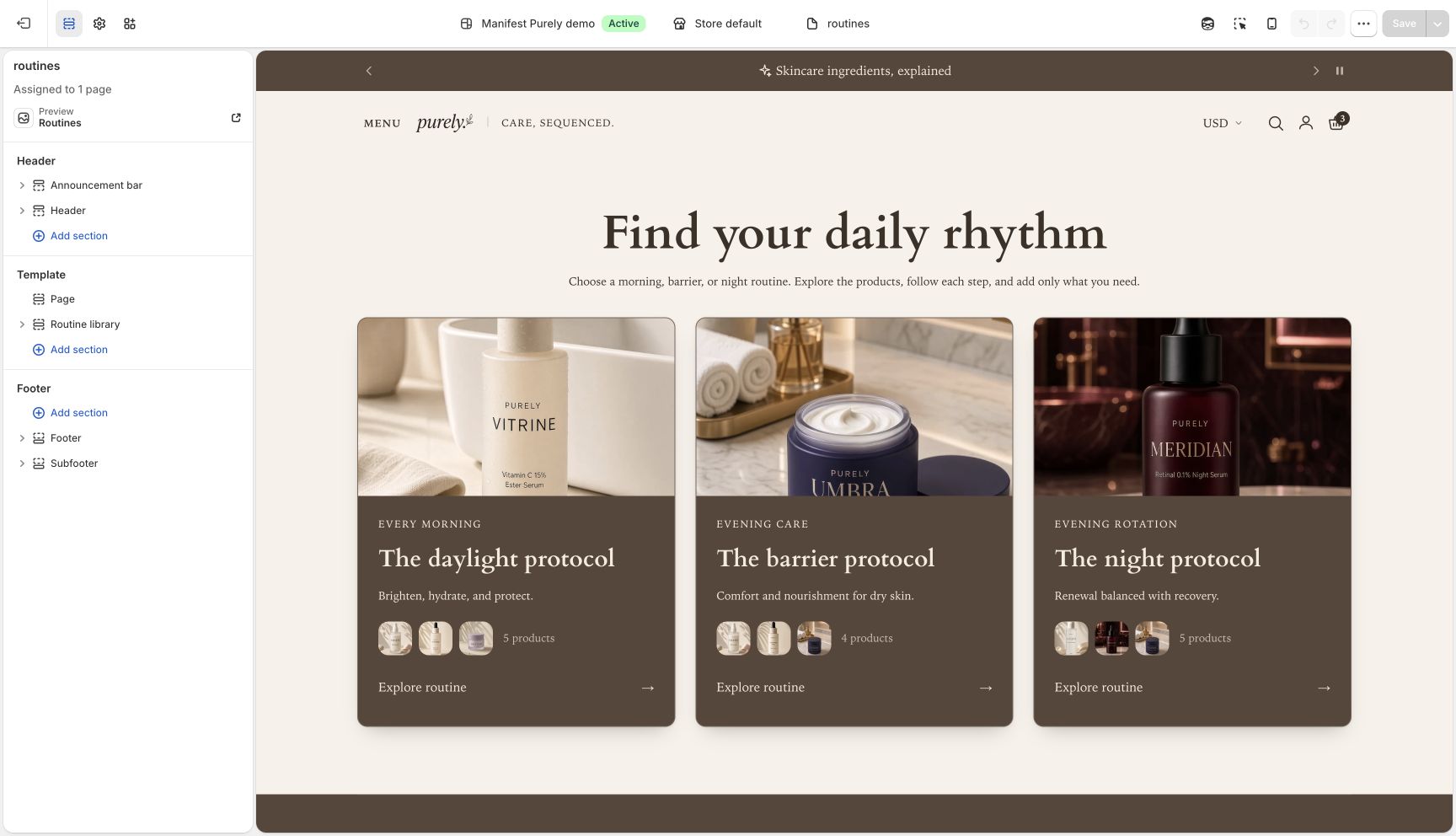
The night preview collection contains Lucent, Meridian, Umbra, Nocturne, and Sable. The destination page distributes them across its retinal, recovery, and mask tabs. A boxed set or accessory is not part of this five-product preview unless the routine itself is changed to include it.
5. Check the overview and publish
- Save, then check every Explore routine destination.
- Compare each preview’s products with the linked page, including Extended steps or alternatives.
- Check the selected variants, current prices, and availability on the destination page. A library product count does not promise that every item is in stock or that a discount applies.
- Preview desktop and mobile. Phones show one swipeable card with part of the next card visible.
- Make the finished overview and its destinations Visible in Shopify admin.
- Open Content → Menus, edit the menu used by the header, and add Routines linking to this overview page. Save and test the link from the storefront menu.
Keep the page section that supplies the overview’s main heading, even when its title and body are visually hidden. For the full appearance controls, see Routine library.