Set up product routine preview
Assign relevant routine pages to each product and show their steps in Product routine preview.
Use Product routine preview when a product page should show the complete routines that include that product, highlight its place in the sequence, and link to the full routine page. The product’s metafield chooses the pages; each destination Routine builder supplies the steps.
Finish your routine pages first. No app or complementary-product list is required for this preview. For a full builder with shopping controls directly on the product page, follow Add a builder to product pages instead.
1. Create the product metafield once
- In Shopify admin, open Settings → Metafields and metaobjects → Products. Some admin versions call this Settings → Metafields and metaobjects → Products.
- Check for an existing Routine pages definition before creating another.
- Choose Add definition and enter Routine pages as the name.
- Confirm the namespace and key are custom.routine_pages. Use the plural pages.
- Set Type → Page, then change One to List of pages. The finished control shows List and Page. A text field or a single Page reference is not the required list type.
- Optionally add a description: “Select the published routine pages that include this product. Product routine preview displays them in this order.”
- Keep the definition pinned so it is easy to find on product records, then save.
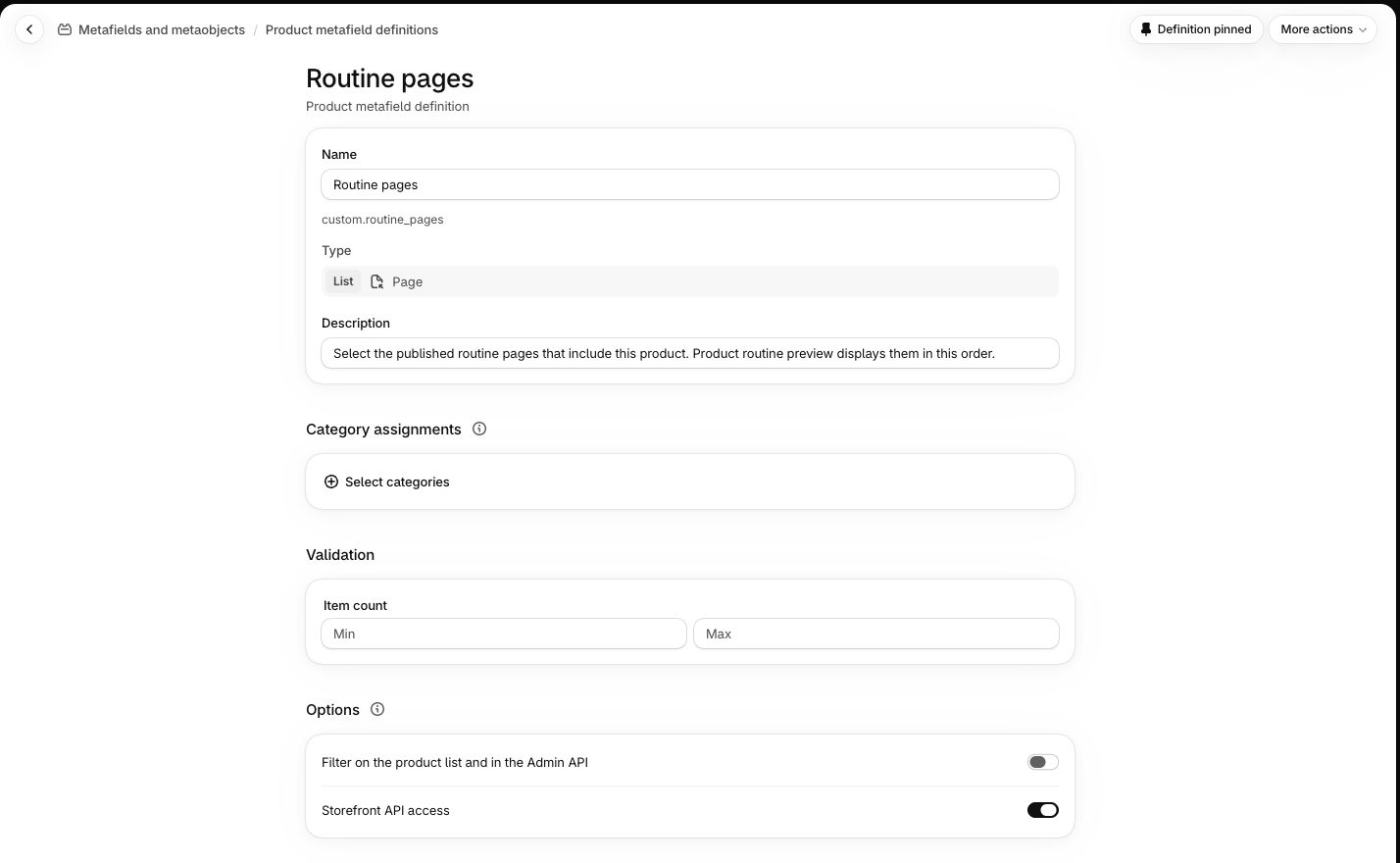
This definition belongs to Products. It is created once for the store; the selected pages are filled in separately on each relevant product.
2. Assign routine pages to a product
- Open Products → the actual product in Shopify admin.
- Find Metafields → Routine pages near the bottom. Use View all if the field is not pinned.
- Choose the finished routine pages that include this product, arrange them in the intended order, and save the product.
- Repeat for the other products. A product may reference one page or several pages.
For many products, select them in the product list, choose Bulk edit → Columns → Routine pages, and edit the page-reference cells. Save the bulk changes when finished.
Worked example: Purely
| Product | Routine pages, in display order |
|---|---|
| Solvent Milk Cleanser | The daylight protocol, then The barrier protocol |
| Umbra Rich Night Cream | The barrier protocol, then The night protocol |
| Meridian Retinal 0.1% Night Serum | The night protocol |
These are references to complete Shopify pages. Selecting a collection or typing page names into the product description does not assign those pages. A product without an assignment does not inherit another product’s choices, even when both use the same template.
3. Configure the preview section
- Open Online Store → Themes → Customize on the intended theme.
- Open the product template actually assigned to the product, and select that product under Preview.
- Select Product routine preview. If it is absent, use Add section → Product routine preview under Template and position it below the main product information. Keep one preview section in the layout to avoid repeating the same assignments farther down the page.
- Leave Routine pages metafield set to custom.routine_pages.
- Set Match routine using → Current product for an individual product.
- Choose Routine card layout → Stacked to show all assigned routines vertically, or Slideshow to browse them one at a time. One assigned page needs no outer routine navigation.
- Choose the section’s color schemes and spacing, save, and preview the actual product.
| Preview setting | Individual-product example |
|---|---|
| Routine pages metafield | custom.routine_pages |
| Match routine using | Current product |
| Routine card layout | Slideshow when browsing several assigned pages |
| Default routine page | Optional fallback for products without assignments |
The section reads the metafield key itself. You do not need to connect it through the database icon or add manual routine cards. Each product using this template can still show different assigned pages.
4. Check the destination and the highlighted step
Each assigned page must be Visible on the online store and contain a Routine builder with the current product selected in a Product step. The preview uses the first matching tab on that page, preserving its authored order, including Extended steps.
For Solvent, the daylight preview highlights the cleanser and the barrier preview highlights the same product in that routine. For Meridian, the night page’s Retinal nights tab supplies the preview. For Sable, the matching Mask nights tab supplies it. The preview does not merge every night schedule into one sequence.
The product page shows the preview and Explore routine link. Routine purchasing, instructions, ownership choices, and Essentials/Extended switching remain on the complete routine page.
5. Use a default page or set matching when appropriate
Default routine page is optional. Products without a populated assignment can show this page. With no assignment and no default, the section hides from customers and shows setup guidance in the editor. An assigned page can retain its title and link even when its detailed sequence cannot load.
For a set, assign the page to the set product, fill custom.set_contents with a List of product references, and choose Match routine using → Set contents. The destination builder should contain the individual included products. Matching steps are highlighted as In this set. This does not create a bundle or assign routine pages automatically from set membership.
If you use another Page reference list, enter its exact namespace.key in Routine pages metafield. The default key can fall back to the older custom.routine_page field when the new list is empty; a custom key reads only that field. See the section reference for details.
6. Verify desktop and mobile
- Preview one product with one routine and another product with several routines.
- Confirm the right product is highlighted, the step order matches the destination, and Explore routine opens the intended page.
- Test the previous/next routine arrows if using Slideshow, and browse the steps on a phone.
- Change a step on the destination page, save, and reload the product page to verify the update.
| What you see | What to check |
|---|---|
| No preview | Check the product’s assigned template, section visibility, metafield key, and saved page references. |
| Page title and link, but no steps | Make the destination page Visible and select the current product in its builder. Scroll near the section so the sequence can load. |
| The same preview appears twice | Keep one Product routine preview section in the assigned product template. |
| Several products show the same fallback | Fill Routine pages on each product, or review Default routine page. |
| An editor validation note | Check that the field is a List of Page references and that namespace.key is correct. |
| A set has no highlighted steps | Check custom.set_contents, Set contents matching, and the included products in the destination builder. |
The product metafield owns page assignments and order. Shopify pages own titles and URLs. Each destination builder owns the sequence and description. The product template owns preview placement and appearance. Collections do not populate this preview.