Evidence cards
Show up to eight products with their own images, prices, ratings, and three concise facts. On product templates, an ordered Set contents metafield can supply different cards for each set.
- Merchant-addable
- Yes, in supported locations
- Settings
- 38
- Block types
- 1
- Max blocks
- 8
- File
sections/evidence-cards.liquid
Available in: Product templates.
Included in supplied templates: Product (set)
When to use it
On product pages, below the buying section, to explain what is included in a set or present a selected group of products with facts shoppers can scan.
Setting it up
- Open the intended product template in the theme editor and add Evidence cards. Write the heading under Content.
- For different contents on each set, create Set contents as a product metafield with identifier custom.set_contents and type List of products, then fill it on each set product. See the screenshot walkthrough.
- For a fixed selection, choose a product in each Product block, up to eight. These blocks are used only when the viewed product has no usable Set contents list.
- Under Facts, choose each Fact source and enter the Automatic fact labels for set-supplied cards. Fill the selected fields on each included product. Manual blocks have their own labels and fallback values.
- Choose the image ratio, prices, ratings, and card numbers under Cards, then the color scheme, desktop columns, Cards layout, spacing, and padding. Preview desktop and phone layouts before saving.
Where the content comes from
Shopify supplies each card’s image, title, price, and available review data. The viewed product’s Set contents list owns automatic product selection and order; Product blocks own the manual selection, badges, labels, and fallback facts. Section settings select the category or custom metafield sources read from each card’s product.
Notes and cautions
- A populated Set contents list takes precedence over Product blocks. Reorder that list on the set product to change automatic card order.
- Choose Swipe for a horizontal rail on phones or Stacked for one card per row. Put the products in the order shoppers should read them.
- Product images and titles open individual product pages. Buy the complete set through Product stage; this section does not configure bundle pricing or inventory.
Evidence cards setup, with screenshots
Evidence cards is available on product templates. It shows up to eight products, with up to three facts on each card. The screenshots below follow Purely’s The Barrier Protocol Set: Solvent Milk Cleanser, Ceramide Veil Barrier Serum, and Umbra Rich Night Cream.
Choose how the products will be selected before configuring the facts.
| Setup | Products and order come from | Best for |
|---|---|---|
| Automatic set contents | The viewed product’s custom.set_contents product list | Several sets sharing a template, each with different contents |
| Manual Product blocks | Products selected and ordered inside this section | A fixed selection shared by products using that template |
A populated Set contents list takes priority automatically. There is no source switch to turn on. While that list is in use, changing a Product block’s product, badge, labels, or values does not change the automatic cards. The blocks remain available as the fallback for products without a usable list.
Show the products included in a set
1. Create the Set contents definition once
Skip this step if your store already has the definition shown below. Purely already has it.
- In Shopify admin, open Settings → Metafields and metaobjects → Products.
- Choose Add definition and enter Set contents as the name.
- Set the namespace and key to exactly
custom.set_contents. The theme reads this specific identifier; a similarly named field with a different key will not supply the cards. - Choose Product as the type and List as the value mode. Shopify may describe this as
List of products; its technical type is
list.product_reference. A single Product reference or a list of text values will not work. - Add a useful description, such as “Products included in this set, in display order,” and save. Pin the definition if you want it readily available on the product editing page.
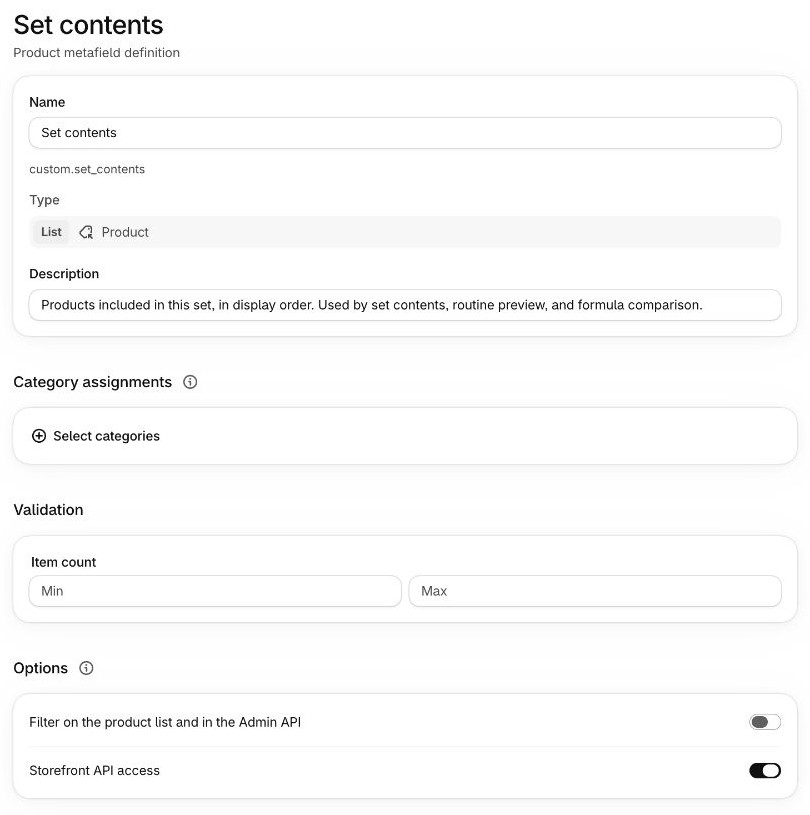
The definition creates a place to store the selection. You still need to choose the products on each set.
2. Fill the list on each set product
- Open Products and select the set product, such as The Barrier Protocol Set.
- Find Set contents under Product metafields. Use View all if it is not shown.
- Open the product picker and select the individual products included in this set, then choose Done to confirm the selection.
- Arrange the selected products in the order you want the cards to appear, then Save the product. Expand Show … more when necessary to inspect the full selection.
- Repeat on each set product. The section reads the first eight entries in the saved order.
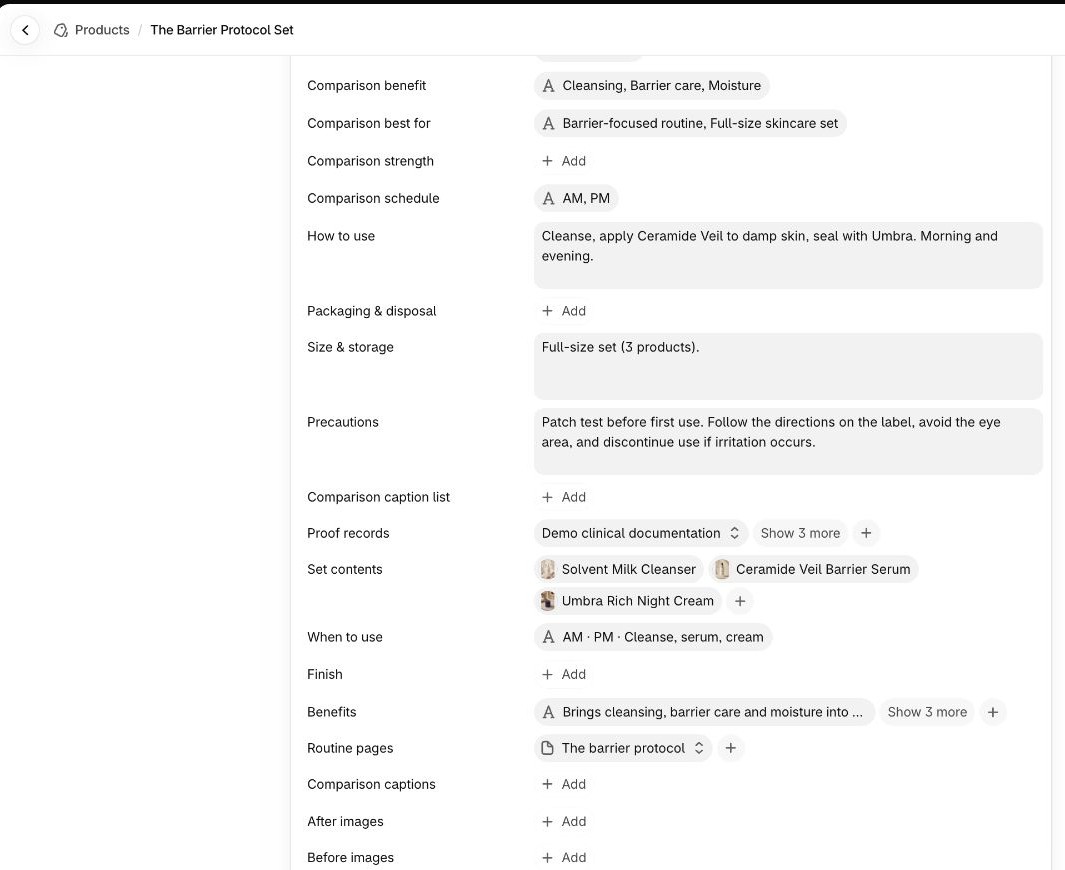
This list belongs to The Barrier Protocol Set. Another set using the same template can have a different list, without changing the template’s Product blocks.
3. Add the section to the correct product template
- Open Online Store → Themes and open the theme editor for the theme you are configuring.
- In the top template selector, choose Products, then the template assigned to your set. Purely’s example uses set. Evidence cards also works on other product templates.
- Choose the actual set product in Preview. Previewing another product reads that product’s Set contents field instead.
- Under Template, choose Add section → Evidence cards, or open the existing section. Place it below Product stage so shoppers can see the contents after the buying information.
- Under Content, enter the Eyebrow, Heading, and Subheading. Set Heading size and Mobile header alignment. Leave Link label empty to hide the optional header link; otherwise fill both the label and its destination.
If you created a separate template, assign it on each intended product under Theme templates → Theme template, then save the product. Template settings are shared; Set contents is per product.
Fill and connect the facts
The three Fact source controls apply to all cards in this section, but each card reads the selected field from its own product. For automatic set contents, fill those fields on the included products, rather than only on the parent set.
This is the setup shown in Purely’s screenshots:
| Fact | Automatic label | Fact source | Field read from each included product |
|---|---|---|---|
| 1 | Routine | Custom product metafield | custom.when_to_use |
| 2 | Finish | Custom product metafield | custom.finish |
| 3 | Active ingredients | Active ingredients | Shopify’s category Active ingredient field |
4. Fill custom fact fields on the included products
If the custom definitions are missing, create them under Settings → Metafields and metaobjects →
Products → Add definition. For this example, create When to use with identifier
custom.when_to_use, and Finish with identifier custom.finish. Use Single line text
with One value for each, then save. Reuse existing compatible definitions instead of creating
duplicates.
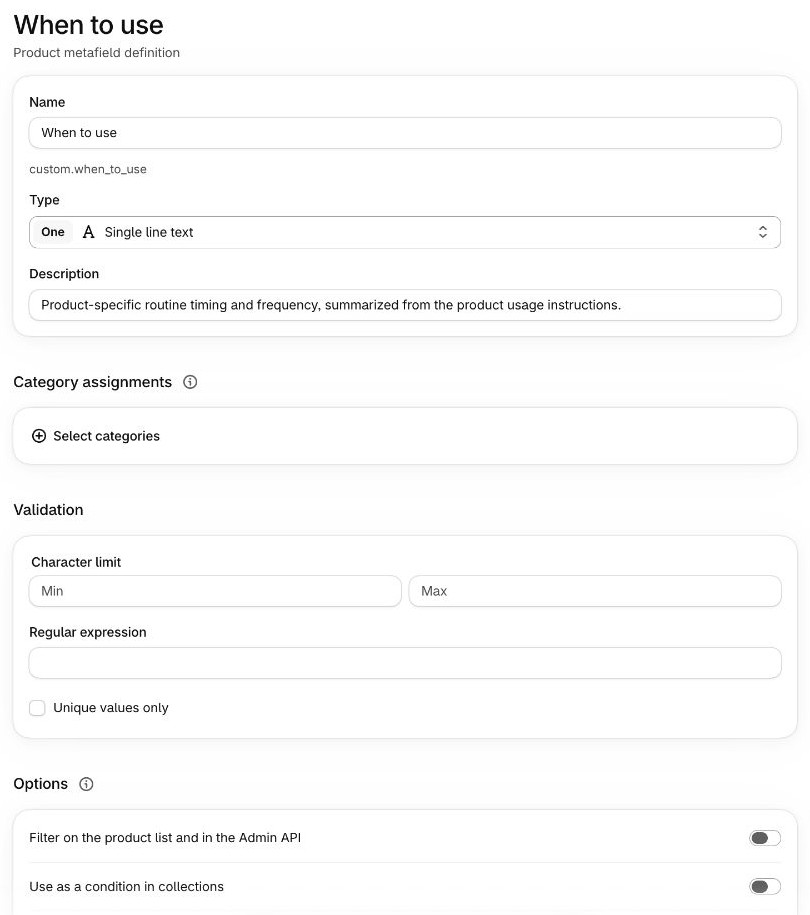
Open each included product and fill its Product metafields, then save. For Solvent Milk Cleanser, the saved example uses Cleanse on dry skin · Emulsify and rinse for When to use and Milk cleanser, clean-rinsing for Finish. Ceramide Veil and Umbra have their own answers.
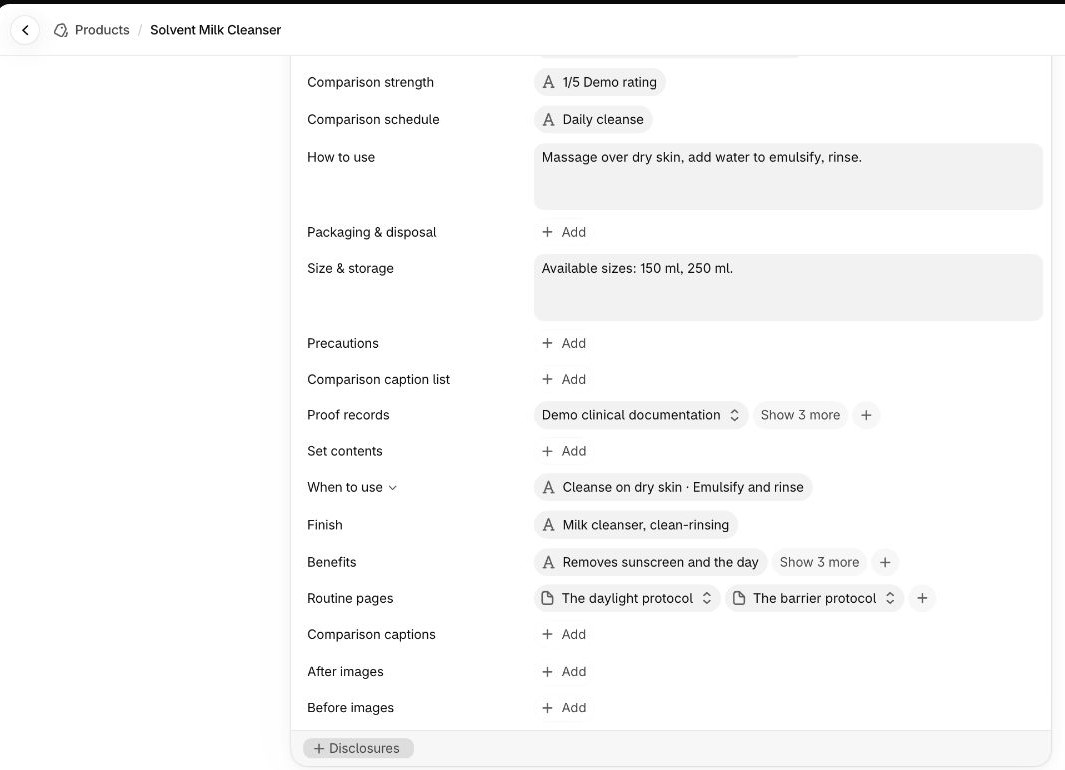
The parent set’s When to use field can describe the whole routine. These cards read the individual cleanser, serum, and cream fields instead.
Custom facts support single-line text, multi-line text, integers, decimals, true/false, and lists of single-line text, integers, or decimals. List values display as comma-separated text. Rich text, files, product references, metaobject references, JSON, and other types are not read as custom facts. The Set contents product-reference list is a separate feature for selecting cards.
5. Fill category facts on the included products
- Open an included product and assign its appropriate Category, then save as needed.
- In Category metafields, fill the attribute you will select as a fact source. For this example, fill Active ingredient. Available attributes depend on the product’s category.
- Save the product and repeat for every included product that should show that fact.
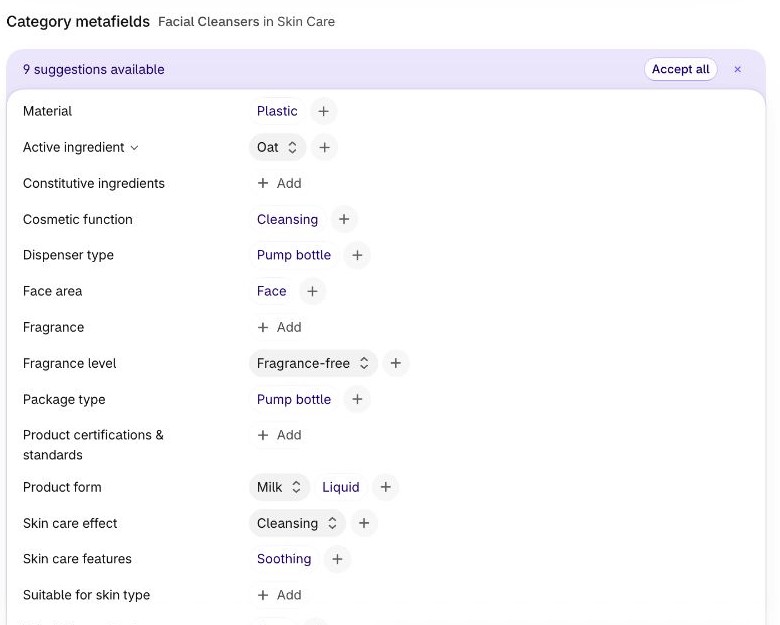
Assigning a category makes its attributes available. Check and save the actual values; a category assignment alone does not fill every fact.
6. Connect the labels and sources in the theme editor
- Return to Evidence cards → Facts.
- Enter Automatic fact 1 label, Automatic fact 2 label, and Automatic fact 3 label. For the example, use Routine, Finish, and Active ingredients. These labels belong to cards supplied by Set contents; manual blocks use their own labels.
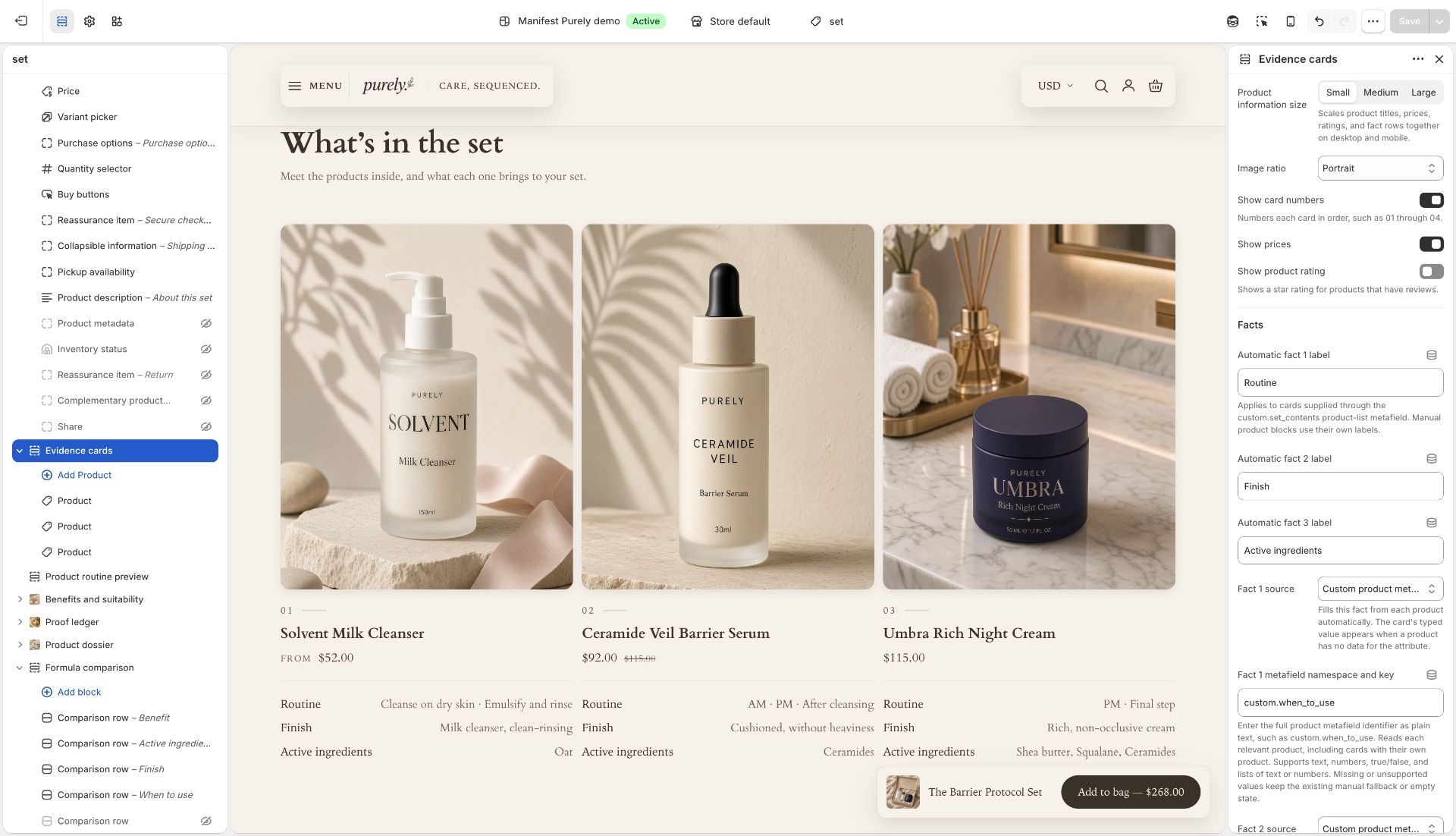
- Set Fact 1 source to Custom product metafield. In Fact 1 metafield namespace and key,
type
custom.when_to_useas plain text. - Set Fact 2 source to Custom product metafield, and type
custom.finishinto its namespace and key field. - Set Fact 3 source to Active ingredients. A category source needs no custom identifier.
- Save the template and check the facts on every card.
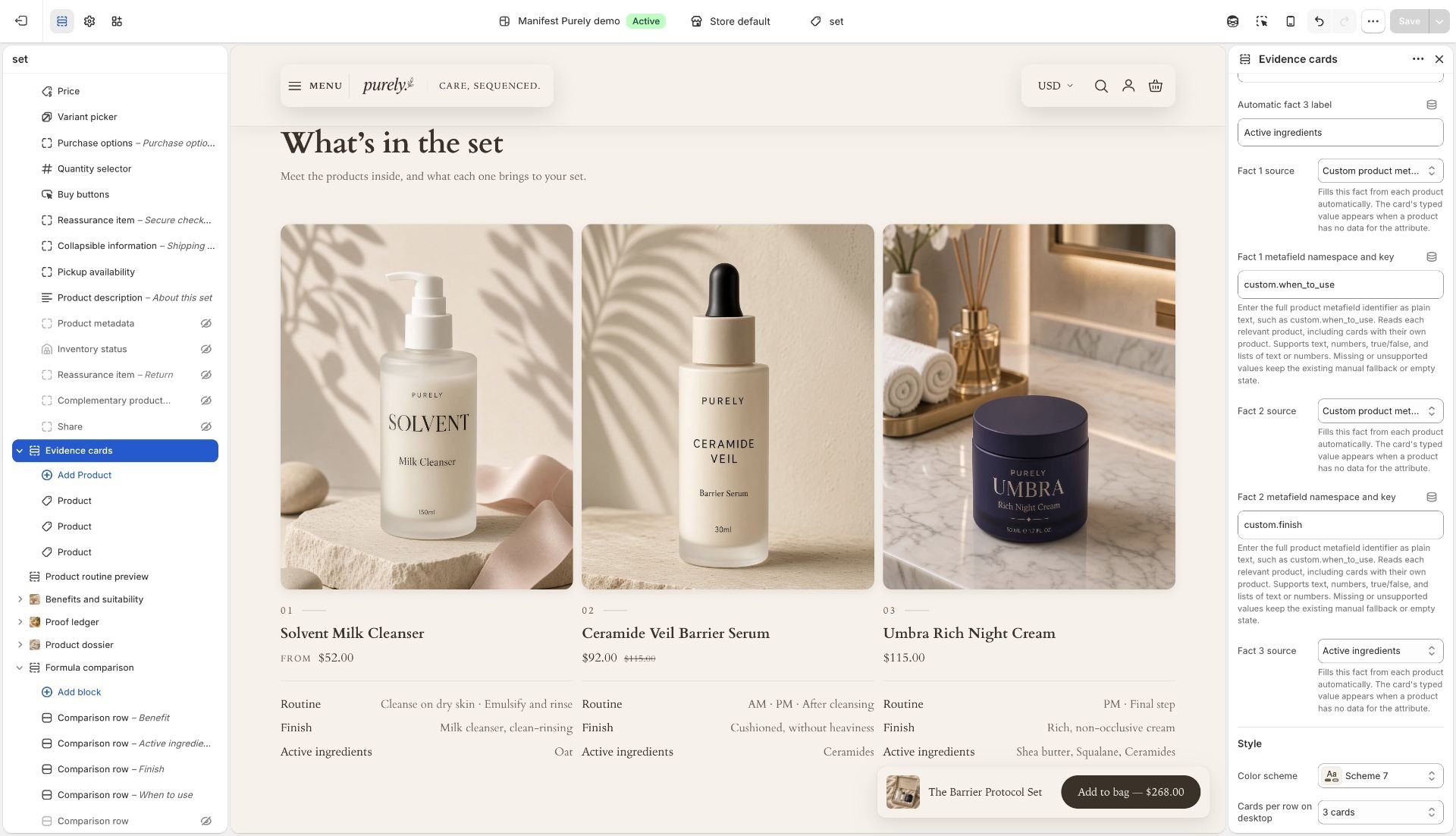
Enter identifiers without a dynamic-source connection. The section needs the literal
namespace.key so it can look up each included product. Creating a custom definition does not add
its name to the source dropdown: select Custom product metafield, then enter the identifier.
Use Product blocks for a fixed selection
Use this path when the viewed product has no populated Set contents list. The selected products and typed block content are shared by every product using that template.
- Expand Evidence cards in the section list and choose Add Product, or open an existing Product block.
- Select the product. Add an optional Badge for its image.
- Enter each Fact 1/2/3 label and Fact 1/2/3 value you need. Replace the starter example text with information that applies to the selected product. A fact with no value is omitted.
- Under the section’s Facts settings, choose Manual value (same on every product) to use these typed values directly. Alternatively, select a category or custom source: the product’s value is used first and this block’s typed value is the fallback.
- Add and reorder up to eight Product blocks, then save.
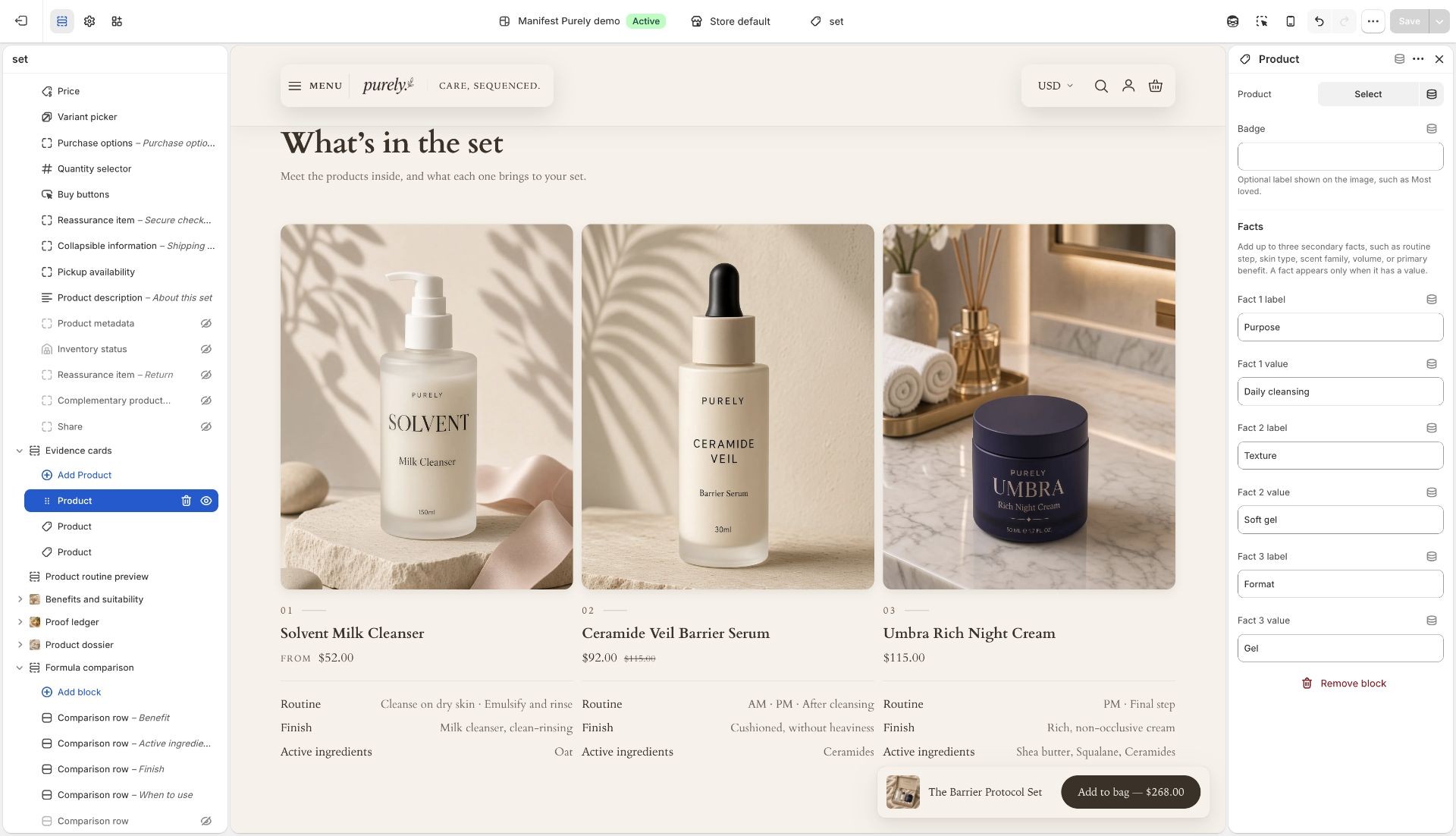
The screenshot shows an unselected fallback block with starter text. The three cards in the preview still come from the populated Set contents list, so this block does not control them.
What happens when a fact is missing?
| Card selection | Selected fact source | Result |
|---|---|---|
| Set contents | Category or custom field | Each included product’s value; a missing or unsupported value omits that fact |
| Set contents | Manual | Fact 1 shows the card’s sequence, such as 01; Facts 2 and 3 have no manual block values and are omitted |
| Product blocks | Category or custom field | The block’s product value first, then its typed Fact value; omit the fact if both are empty |
| Product blocks | Manual | The block’s typed Fact value |
A label alone does not create a fact. A value with an empty label can still display without a visible label. Automatic cards do not borrow manual block badges, labels, or fallback facts.
Choose the layout and check the result
Under Cards, choose Product information size, Image ratio, Show card numbers, Show prices, and Show product rating. Ratings appear only when the card’s product has review rating data; switching the setting on does not create reviews.
Under Style, choose Color scheme, Cards per row on desktop (two, three, or four), Cards layout, and Space between cards. Swipe uses a horizontal rail on phones; Stacked wraps the cards and shows one card per row on phones. Set a custom corner radius if needed, then finish with Top padding and Bottom padding.
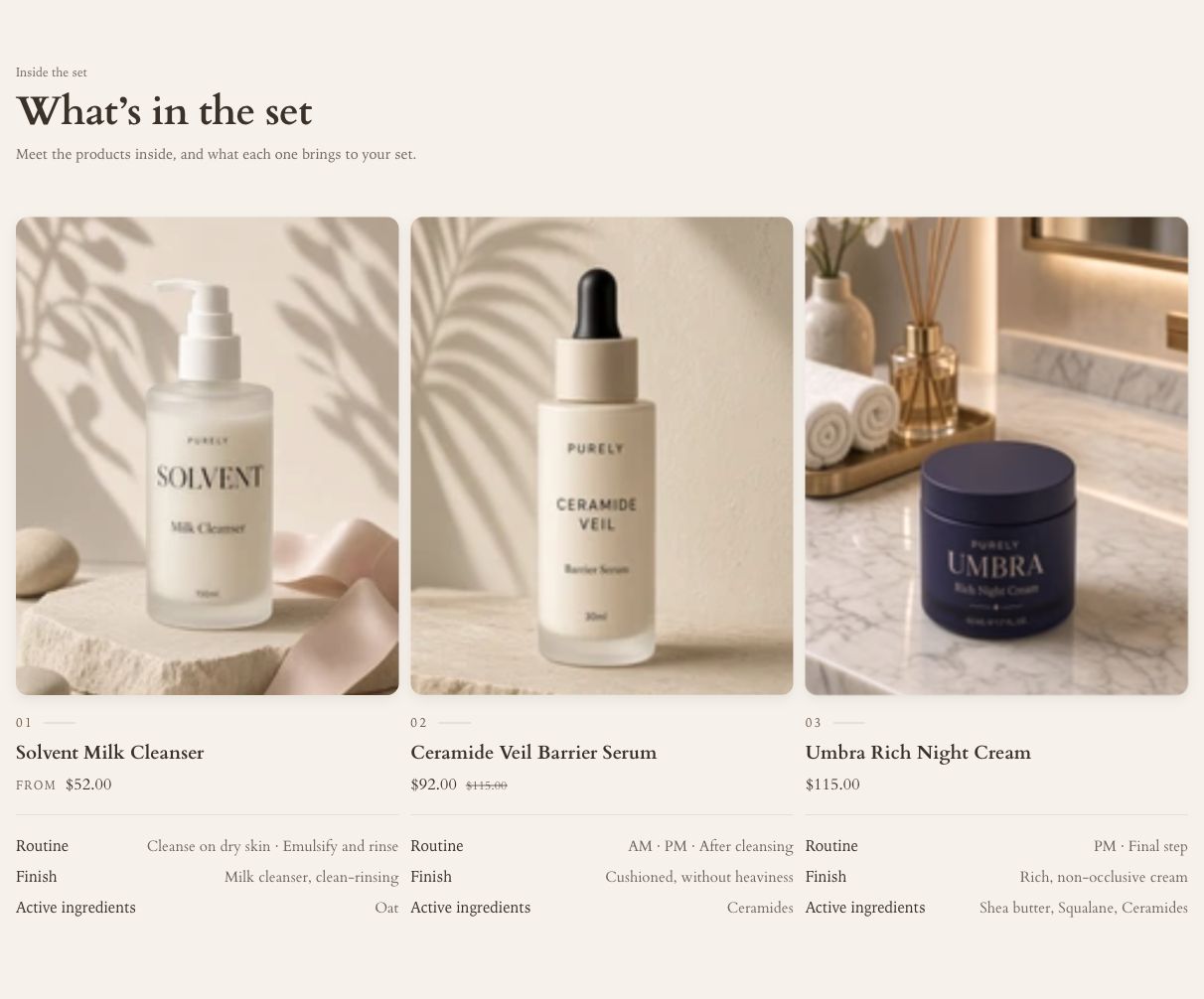
The products follow the saved Set contents order. Images and titles link to their individual product pages. The complete set is purchased through Product stage.
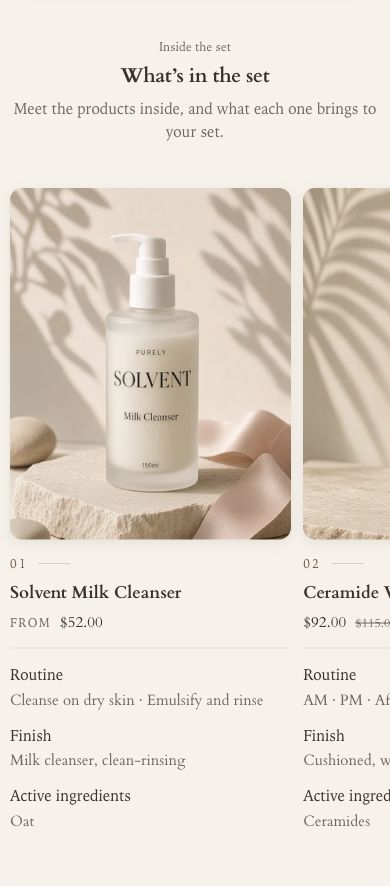
At 390px, Swipe leaves part of the next card visible. Swipe across the rail to inspect the remaining products and their facts.
Before publishing, preview another set using the same template and check that its product list and facts change correctly. Also preview a product without Set contents to confirm that the manual fallback is suitable, or use a separate template when the section should not appear there. Check product links, long facts, prices, and every card at a phone width.
Animate on scroll follows the global reveal and motion settings and reduced-motion preferences. Normal body paragraphs follow Theme settings → Typography → Body font size, with a 15px minimum below 750px; the heading and product information controls keep their separate scales.
Troubleshooting
| What you see | What to check |
|---|---|
| Section is unavailable in Add section | Open a product template. This section is not available on home, collection, or regular page templates. |
| The same products appear on every set | Fill custom.set_contents on each set and preview the correct product. Empty lists use the template’s shared Product blocks. |
| Product blocks do not change the cards | A populated Set contents list owns automatic cards. Edit that product’s list or the section’s automatic labels and fact sources. |
| Set contents is filled but blocks still appear | Verify the exact key custom.set_contents and type List of Product. Confirm that the list belongs to the product being previewed. |
| A fact is missing on one card | Fill the selected source on that included product. Automatic cards omit missing values instead of using block fallbacks. |
| Custom source gives an editor warning | Enter the full identifier, such as custom.when_to_use, with both namespace and key and no surrounding spaces. A valid format does not prove the field exists. |
| Source exists but no custom value appears | Check its exact identifier, supported type, and saved value on the card’s own product. |
| Labels do not change | Use Automatic fact labels for Set contents cards and the individual block’s Fact labels for manual cards. |
| An extra sample card appears only in the editor | Select a product in that block or remove the unused block. Unselected examples are editor previews, not customer cards. |
| More than eight included products are saved | Only the first eight are displayed. Put the intended products first in Set contents. |
Evidence cards displays contents and links to products. It does not configure bundle pricing, component quantities, inventory, or fulfillment. Maintain those through your store’s actual set or bundle setup. For more on supported custom fields, see Custom product metafield setup.
Section settings
Every setting on the section itself, in the order it appears in the theme editor. Group headings match the editor's own grouping.
Content
Appears at the top right of the section. Leave blank to hide the link.
Cards
On product pages, the optional custom.set_contents metafield supplies an ordered list of products. Product blocks supply the products when that field is empty. Product images and titles link to individual products.
Scales product titles, prices, ratings, and fact rows together on desktop and mobile.
Numbers each card in order, such as 01 through 04.
Shows a star rating for products that have reviews.
Facts
Applies to cards supplied through the custom.set_contents product-list metafield. Manual product blocks use their own labels.
Fills this fact from each product automatically. The card's typed value appears when a product has no data for the attribute.
Enter the full product metafield identifier as plain text, such as custom.when_to_use. Reads each relevant product, including cards with their own product. Supports text, numbers, true/false, and lists of text or numbers. Missing or unsupported values keep the existing manual fallback or empty state.
Style
Uses the animation settings in theme settings.
Padding
Blocks
Blocks are added, reordered, duplicated, and removed inside the section. Each type has its own settings.
Product product max 8
Optional label shown on the image, such as Most loved.
Facts
Add up to three secondary facts, such as routine step, skin type, scent family, volume, or primary benefit. A fact appears only when it has a value.