Add a builder to product pages
Show a full routine builder on a product page using that product’s set contents or complementary products.
Use this guide when customers should read and shop the complete sequence directly on a product page. To show relevant routine previews that link to dedicated pages, follow Set up product routine preview instead.
Show a full product-specific builder
Use this when customers should complete the routine without leaving the product page. The builder is merchant-addable; it is not included in the default product or set template. Avoid showing both a full builder and a preview of the identical routine unless each serves a clear purpose.
1. Prepare the current product’s source list
Choose one source per product:
- A set: create custom.set_contents, type List of products, then fill it on the set product with the actual included products in order.
- An individual product: use Shopify’s Search and Discovery → Recommendations to curate its Complementary products. Keep the roles and usage directions compatible with this template.
Set contents takes priority when it is a correctly typed, nonempty list. Otherwise the builder uses the complementary list. It does not take products from a collection or infer them from tags. Tags are matching rules within the chosen list, not a catalog-wide search.
2. Add and configure the builder
- Open the product’s assigned template in Online Store → Themes → Customize.
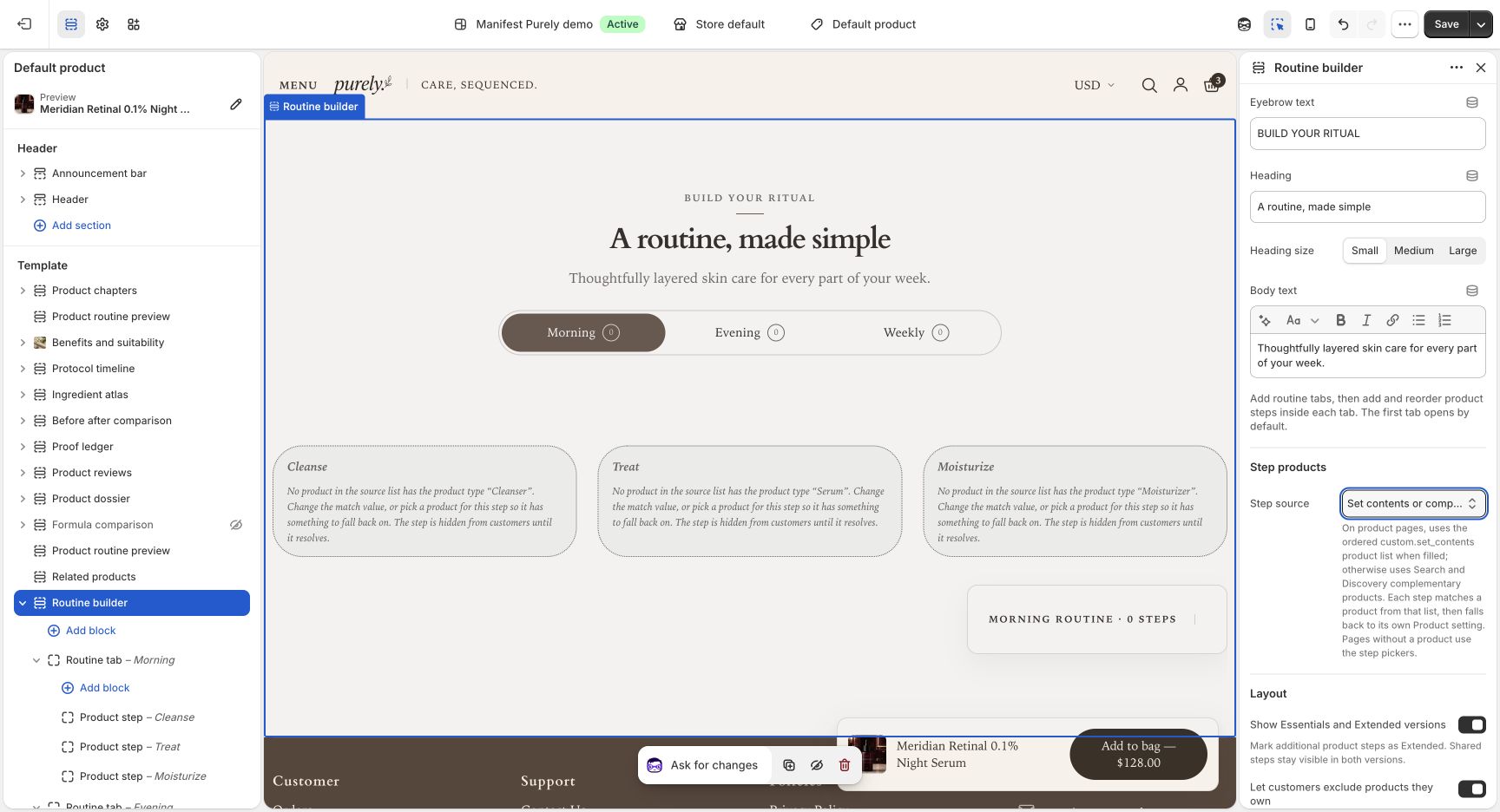
- Under Template, choose Add section → Routine builder.
- Set Step source → Set contents or complementary products.
- Add and name the Routine tabs, then add Product steps inside each tab.
- Set each step’s Match by, Match value, and Match position using the table below.
- Write Usage guidance appropriate for every product that can fill that slot.
- Optionally select a fallback Product. If a step has no match and no fallback, customers do not see that step. A fallback is shared by every product using the template, so choose it deliberately.
- Save and preview at least two actual products with different lists.
Use the per-product source only on a product template. Dedicated pages, the home page, and collection pages have no current product for this lookup.
3. Match roles accurately
| Match by | Example | Important check |
|---|---|---|
| Product type | Cleanser | Match the actual Product type in your catalog; a product categorized as Moisturizer will not match Mask. |
| Product tag | routine:retinal | Match the whole tag on an item already in the selected source list. |
| Position in the list | Match position 2 | Reordering or deleting list entries can change the selected product. |
If two products share a type, use Match position 1 and 2 to distinguish the matching entries, or use distinct tags. Two identical rules with the same position select the same product.
The product being viewed and deleted references are excluded when matching source lists. The viewed product is not inserted into the sequence automatically. A step’s own Product picker is a fallback, not a second source list.
4. Verify buying behavior
Check unavailable products, variant selection, empty lists, fallbacks, and the routine review. A set’s builder purchases component products separately; it does not purchase the set product, create a bundle, synchronize inventory, or apply the set’s price. Keep batch quick add off when the set’s main purchase should be the only way to buy the complete kit.
Keep page templates separate when instructions differ
One product template shares tab names, instructions, matching rules, and fallback selections. Use separate product templates when two groups of products need incompatible guidance. Assign the intended template on each product in Shopify admin, then preview that product in the editor.