Set up routine discounts
Create collection-specific automatic discounts in Shopify, show matching offers in Routine builder, and test real savings.
Set up the discount in Shopify admin first, then describe its exact rule in each eligible Routine tab → Offer message. Routine builder does not create discounts or connect a discount by ID. Shopify applies the offer to eligible cart items; the bag shows the actual savings after the customer adds the routine.
1. Confirm the products and collection
Create your routine pages and choose real products in every step. In Products → Collections, create a separate manual collection for each independently scoped offer and include exactly the eligible products. Check Online Store availability and inventory. The collection controls discount eligibility; it does not fill builder steps.
For alternative tabs, include the union of their eligible products. Purely’s Night routine collection has five products, while each night tab has three steps. It supports Retinal nights, Recovery nights, and Mask nights without asking the customer to buy all five products together. Keep the collection aligned when changing a step or adding an Extended-only product.
2. Create an automatic product discount
- Open Discounts → Create discount → Amount off products.
- Choose Automatic discount. A discount code requires customer entry and is not applied by the builder’s offer message.
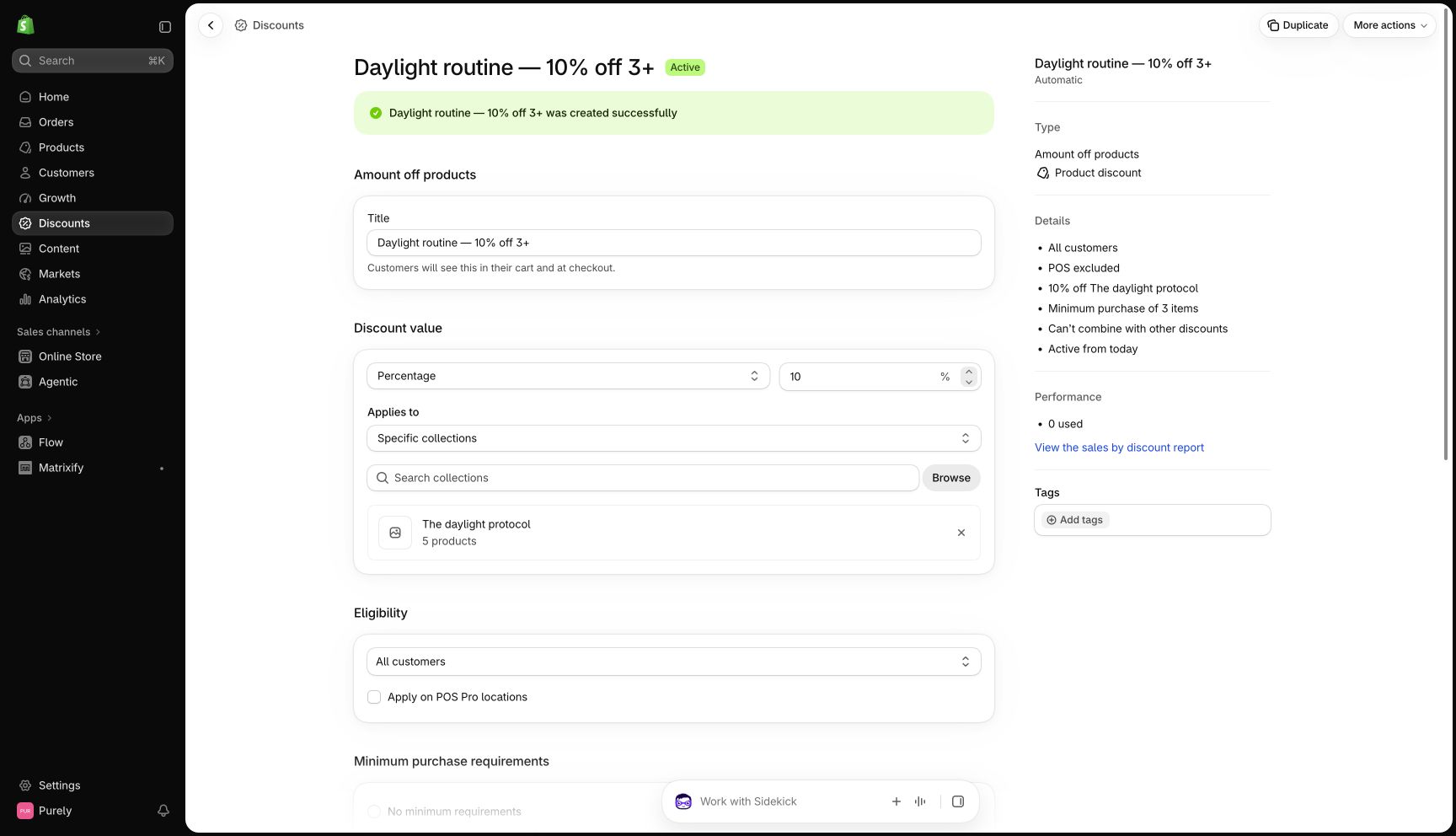
- Give it a clear customer-facing Title, such as Daylight routine — 10% off 3+.
- Under Discount value, select Percentage and enter 10.
- Under Applies to, select Specific collections and choose The daylight protocol.
- Under Minimum purchase requirements, choose Minimum quantity of items and enter 3.
- Review Eligibility and Combinations. This example serves all customers and leaves combinations off, so it cannot stack with other product, order, or shipping discounts.
- Under Schedule (called Active dates in some admin versions), set the intended start and optional end date using the store’s time zone. Save and confirm the status is Active.
A quantity minimum counts eligible units, not distinct products. Three units of one eligible product can meet a three-item minimum. Eligible items already in the cart also count. This setup does not enforce one product from every step, and the offer can apply when products are added from a collection or product page as well as the builder.
3. Configure the offer in Routine builder
- Open Online Store → Themes → Customize on the intended theme.
- Open the template assigned to the routine page and select Routine builder.
- Select the nested Routine tab. Turn on Show complete routine quick add.
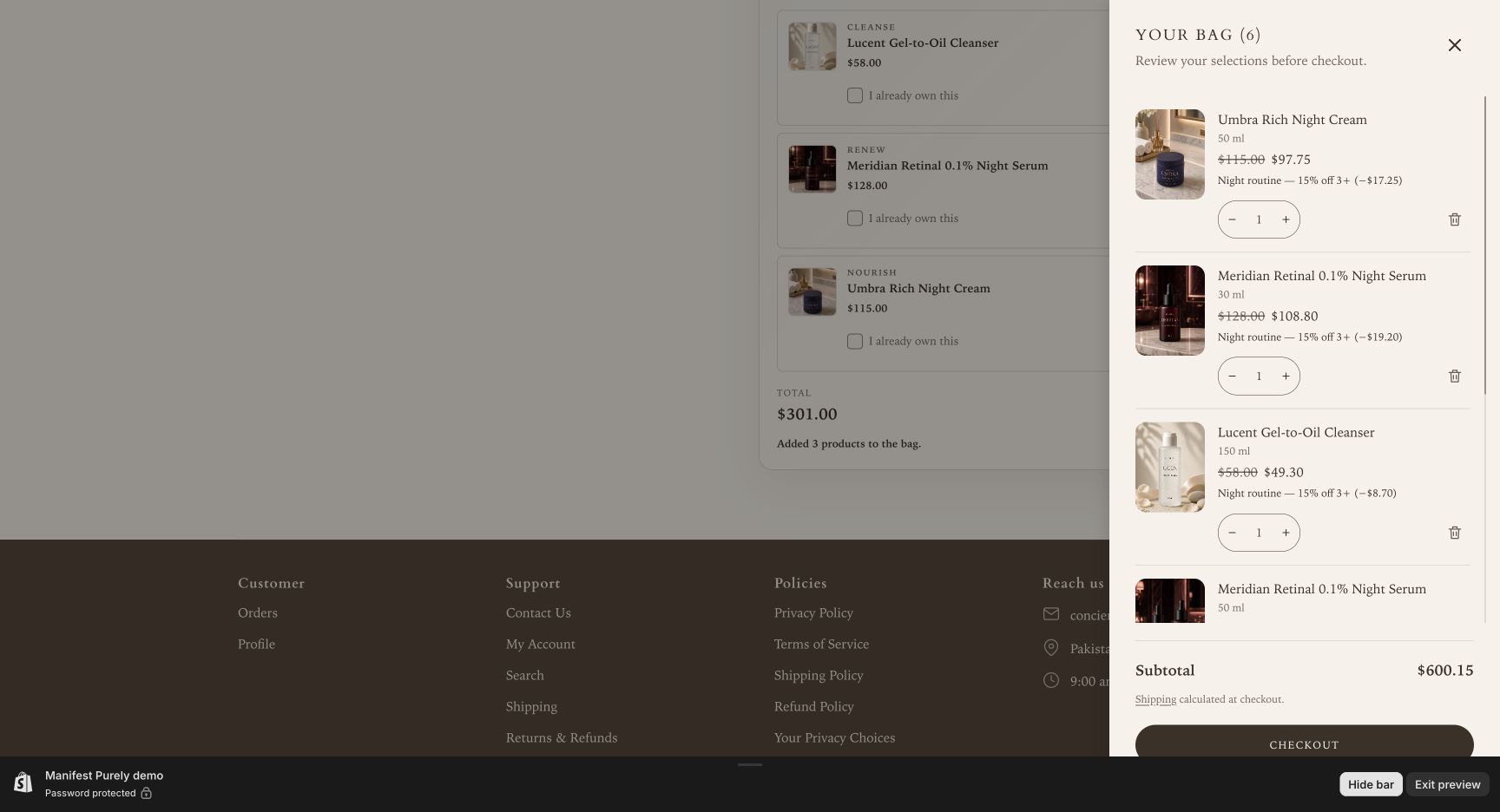
- In Offer message, enter the exact benefit and condition: Save 10% on 3 or more products from this routine.
- Repeat for every tab covered by the offer, then save. For a three-tab night page, configure the message on Retinal nights, Recovery nights, and Mask nights.
There is no discount picker to connect. Shopify checks the cart against its own rules, and the theme displays your text. Leave the message blank until the matching discount is active. Clear or update it whenever the discount’s rate, collection, minimum, eligibility, or dates change.
Worked example: Purely
| Routine page | Eligible collection | Automatic discount | Minimum | Offer message on each tab |
|---|---|---|---|---|
| The daylight protocol | The daylight protocol, 5 products | 10% | 3 eligible items | Save 10% on 3 or more products from this routine. |
| The barrier protocol | The barrier protocol, 4 products | 15% | 3 eligible items | Save 15% on 3 or more products from this routine. |
| The night protocol | Night routine, 5 products | 15% | 3 eligible items | Save 15% on 3 or more products from this routine. |
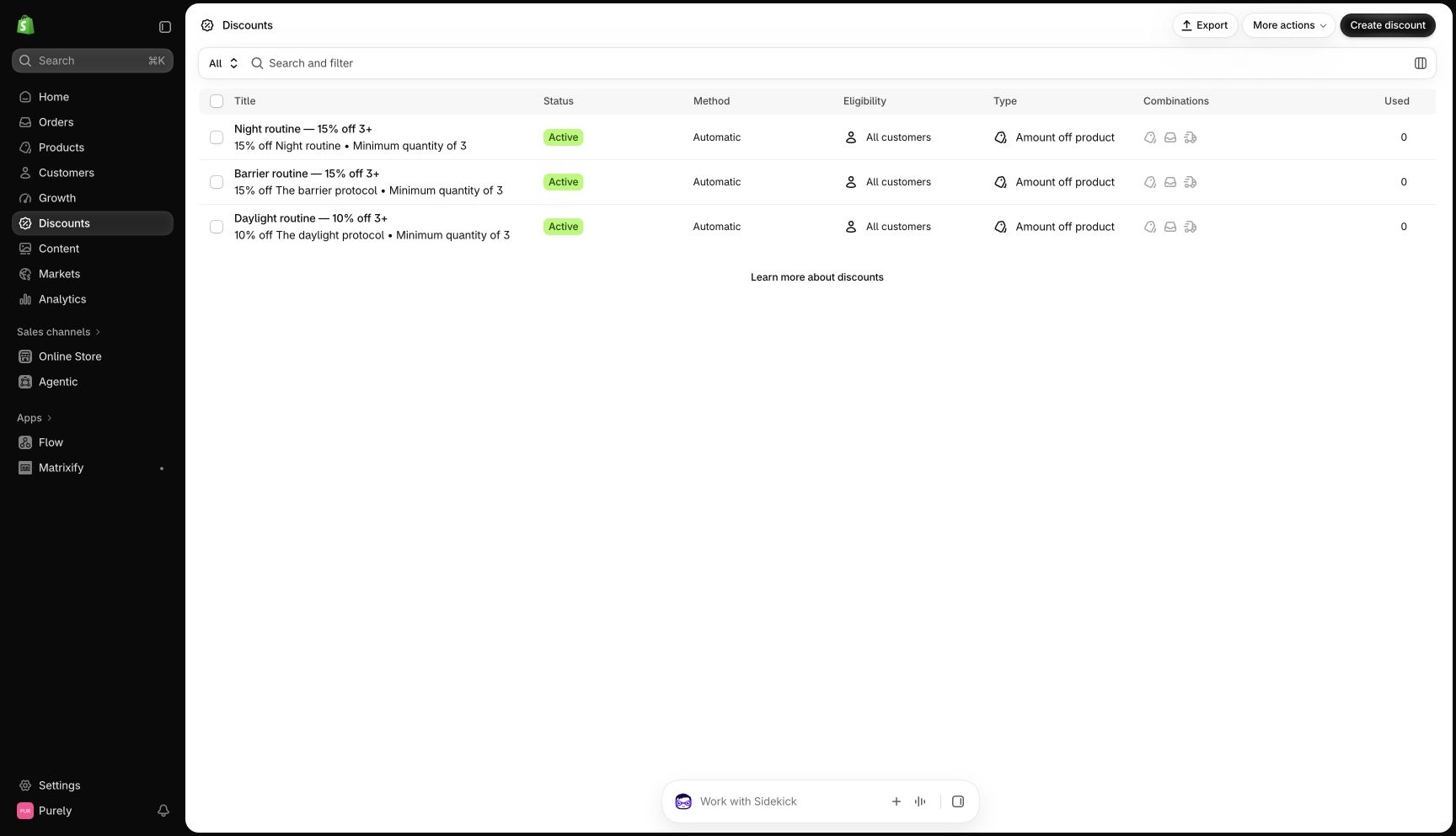
All three offers are automatic product discounts with combinations disabled. Solvent belongs to both the daylight and barrier collections, and Umbra belongs to barrier and night. In a mixed cart, Shopify’s combination and best-discount rules determine which offer applies; the percentages do not add together. The builder cannot reserve an offer for the page where the item was added.
4. Check Essentials, Extended, and owned products
The selected version and I already own this choices determine what the builder adds. The discount minimum stays as configured in Shopify; it does not change with the visible step count. Unavailable products are skipped, and products requiring a subscription need their product-page purchase flow.
For example, Purely’s barrier Essentials routine has three steps. If the serum is sold out, only two available products can be added, which does not qualify by itself. Extended adds the balm; three eligible products can then meet the minimum. Do not promise that every review will qualify.
Each night schedule can qualify with three eligible products. Removing an owned item may bring the purchase below three, unless enough eligible items are already in the cart.
5. Test the actual discount
Use a separate preview cart, keep track of what you add, and remove only your test items afterward. Do not place an order to test the builder.
- Open a routine with an empty test cart. Confirm the offer text and ordinary pre-purchase prices.
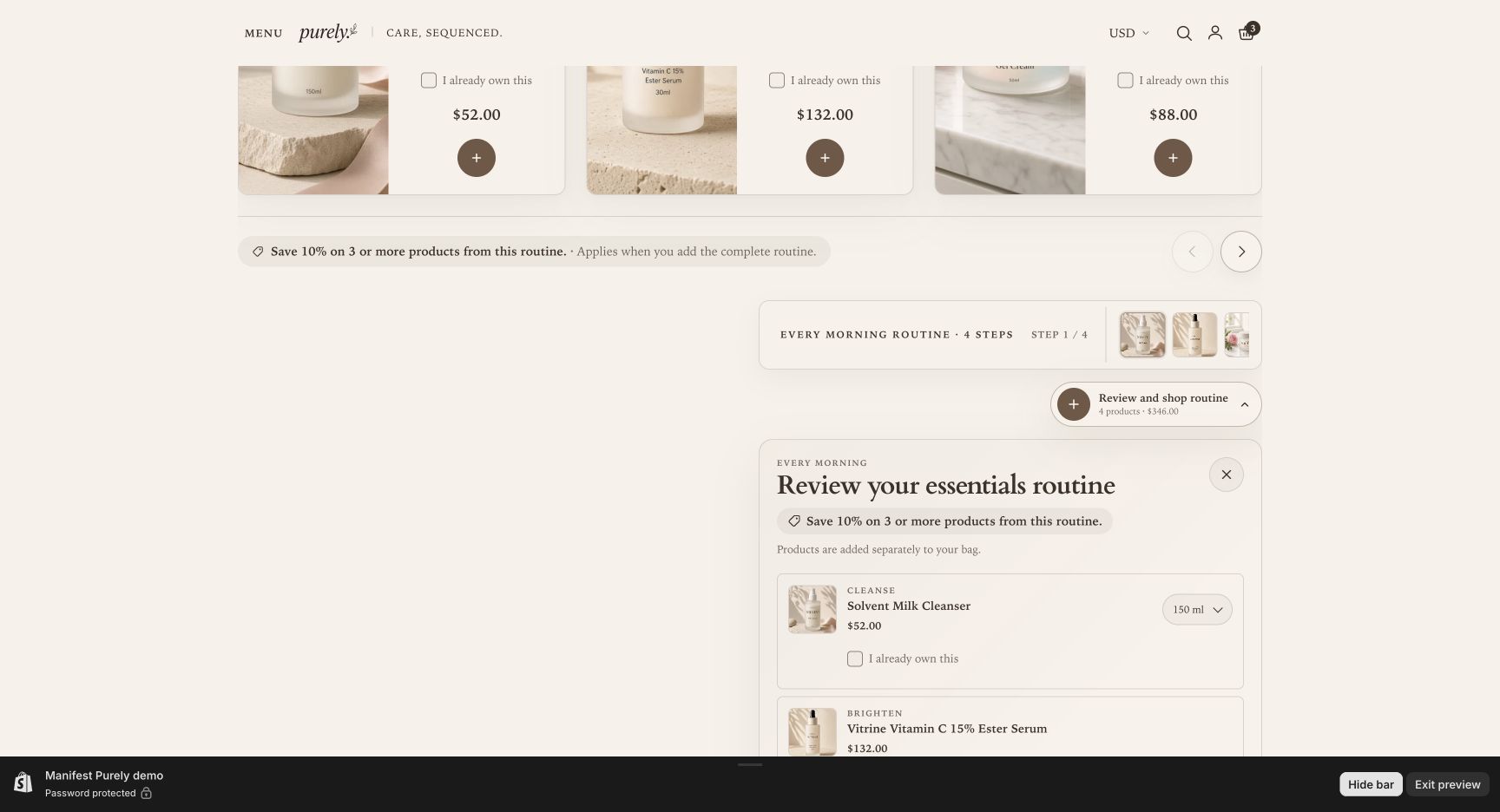
- Open Review and shop routine, check the chosen variants and available product count, and add at least three eligible items. Verify the bag’s discount title, discounted line prices, and total.
- Check the bag’s actual savings after a successful add. An Added products confirmation confirms the add, not discount eligibility. If a savings confirmation is available, it uses Shopify’s applied product discounts; the theme does not estimate a discounted total before adding.
- Repeat below the minimum: add only two eligible items and verify the routine discount is absent.
- Test another routine, all alternative night tabs, Essentials and Extended, and owned exclusions.
- Check a mixed cart and an unrelated product. Confirm collection scope and non-stacking behavior.
- Preview on a phone: check the offer icon, review message, and bag’s discount details.
With the cart page instead of the drawer, the customer goes to the bag, where applied discounts are listed. Order-level and shipping discounts are not reported as product savings by the routine confirmation. Shopify can recalculate offers whenever cart quantities or contents change.
Troubleshoot
| Problem | Check |
|---|---|
| The offer text appears but prices do not change | Text alone does not apply a discount. Check the active Shopify rule and the cart after adding. |
| Adding the routine earns no discount | Count available eligible units, including ownership exclusions; verify the collection and start/end dates. |
| A different promotion wins | Check shared products, other qualifying offers, and combination settings. |
| Only one night tab shows the message | Fill Offer message on every covered Routine tab. |
| A repeated product qualifies | Expected for a quantity rule. It does not require distinct steps. |
| New products fail to qualify | Update the discount collection when editing the builder’s product selections. |
| Discount ended but the offer remains | Clear the tab messages manually; the theme cannot validate promotion status. |
Shopify owns the discount configuration and calculations. Routine tabs own the displayed offer copy. Collections own eligible membership. Products own price, variants, and availability.
See the Routine builder reference, Shopify’s amount-off discount guide, and combination rules.