Add to the home page
Add one fixed, manually curated routine to the home page and connect its shopping controls.
The home page has no current product. Use manually selected step products. You do not need Search and Discovery, a product metafield, or a collection to populate this builder.
1. Open the home page and add the section
- Go to Online Store → Themes → Customize and select Home page in the top template selector.
- Under Template, select Add section, search for Routine builder, and add it.
- Drag it to the intended place among the other home page sections. It cannot be placed in the header or footer groups.
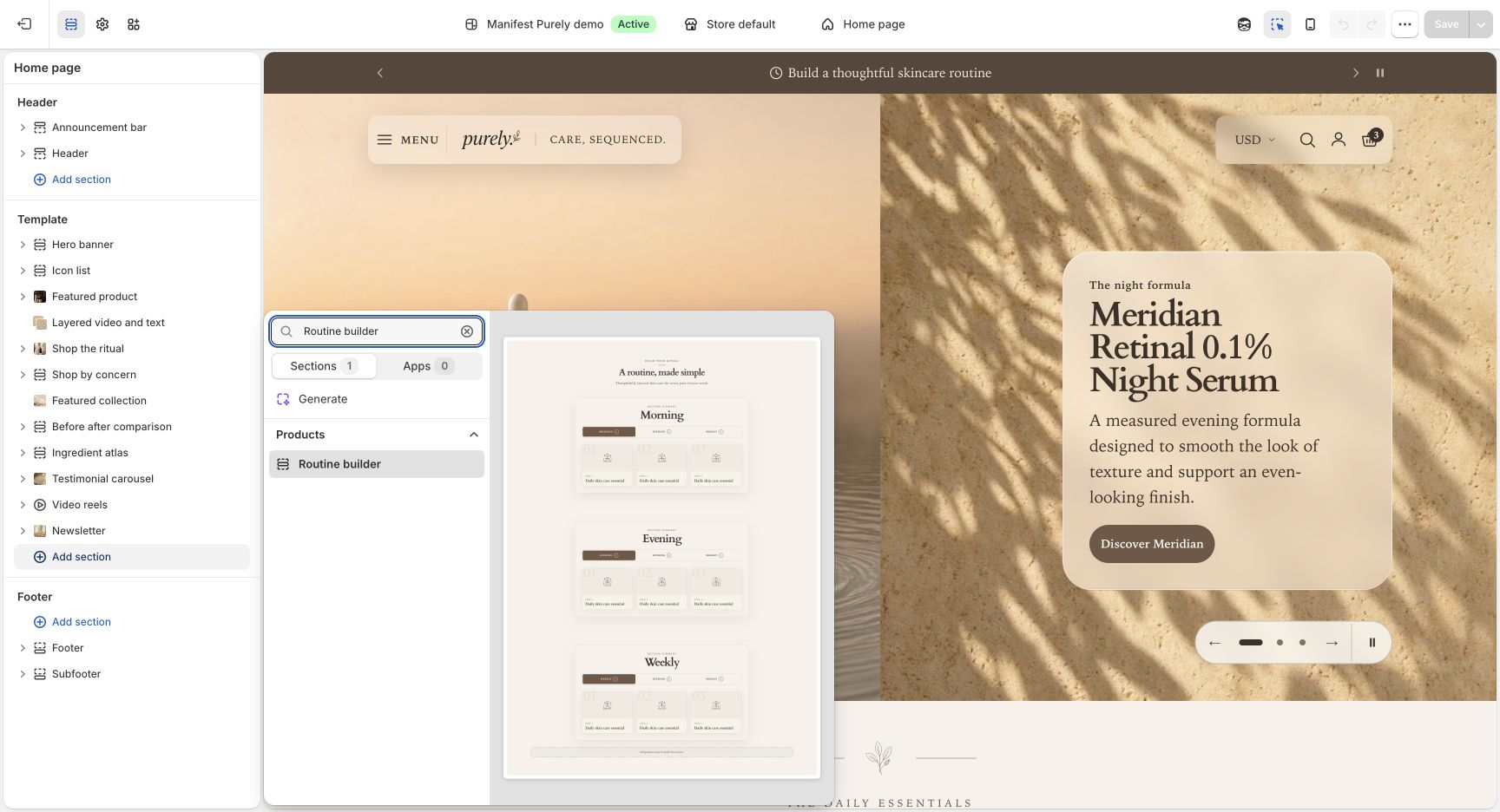
2. Choose products directly
- Open the new section and set Step source → Step blocks (same on every product).
- Write the Eyebrow text, Heading, and Body text.
- Add a Routine tab, name it for the schedule, then add Product steps inside it.
- Pick the actual Product for every step, write its Step name and Usage guidance, and reorder the blocks. Product media, prices, variants, and availability come from Shopify.
- Remove unused starter tabs or steps. Editor sample cards are not real products and are hidden from customers until a product is selected.
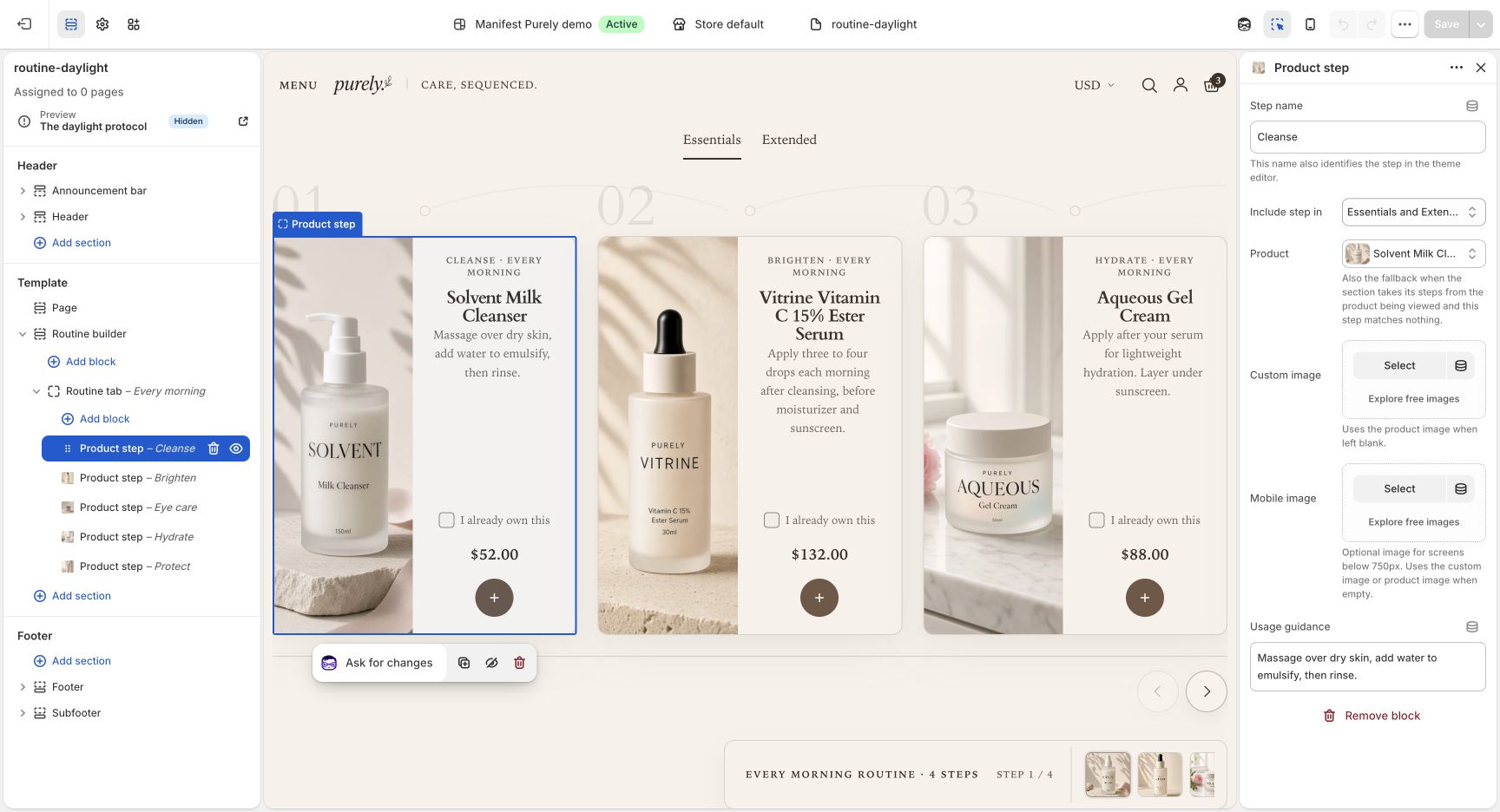
The same Product picker is used on the home page. The screenshot shows the shared step controls; the surrounding template in this example is a dedicated routine page.
3. Choose versions and shopping controls
Use Show Essentials and Extended versions for optional additions. Set the main sequence to Essentials and Extended and extra steps to Extended only. For alternatives that replace a product, use another Routine tab instead of adding both products to one sequence.
Enable Show complete routine quick add on each tab. Choose whether customers can exclude products they own. Leave Offer message blank unless the matching automatic discount is active and tested. The review buys selected available products as separate cart items.
4. Save and verify the home page
- Save the section and preview the home page on desktop and mobile.
- Check every tab, version, product option, review total, and unavailable-product message.
- Confirm that the routine fits between neighboring sections and does not repeat a full routine already shown elsewhere on the home page.
Editing a home-page builder does not update a builder on a dedicated routine page. They are separate section instances. If maintaining the same sequence twice is unnecessary, add Routine library with a card linking to the full routine page instead. See Create a routines overview.