Add to collection pages
Add a fixed product routine to one collection template without changing other collections.
A collection page has a current collection, but it does not have a current product for the Routine builder’s set-contents or complementary lookup. The builder does not automatically turn that collection into steps. Choose Step blocks and select the products directly.
1. Choose which collections should share the routine
- Open Online Store → Themes → Customize and choose Collections in the template selector.
- To give one collection its own routine, select Create template, name it for the intended collection, and base it on the collection layout you want to retain. Save it.
- In Products → Collections, open that collection, select the new Theme template, and save.
- Return to the editor and select the actual collection under Preview.
Editing the default collection template changes the section configuration for every collection using it. Use separate templates when the products or instructions should differ.
2. Add a manual Routine builder
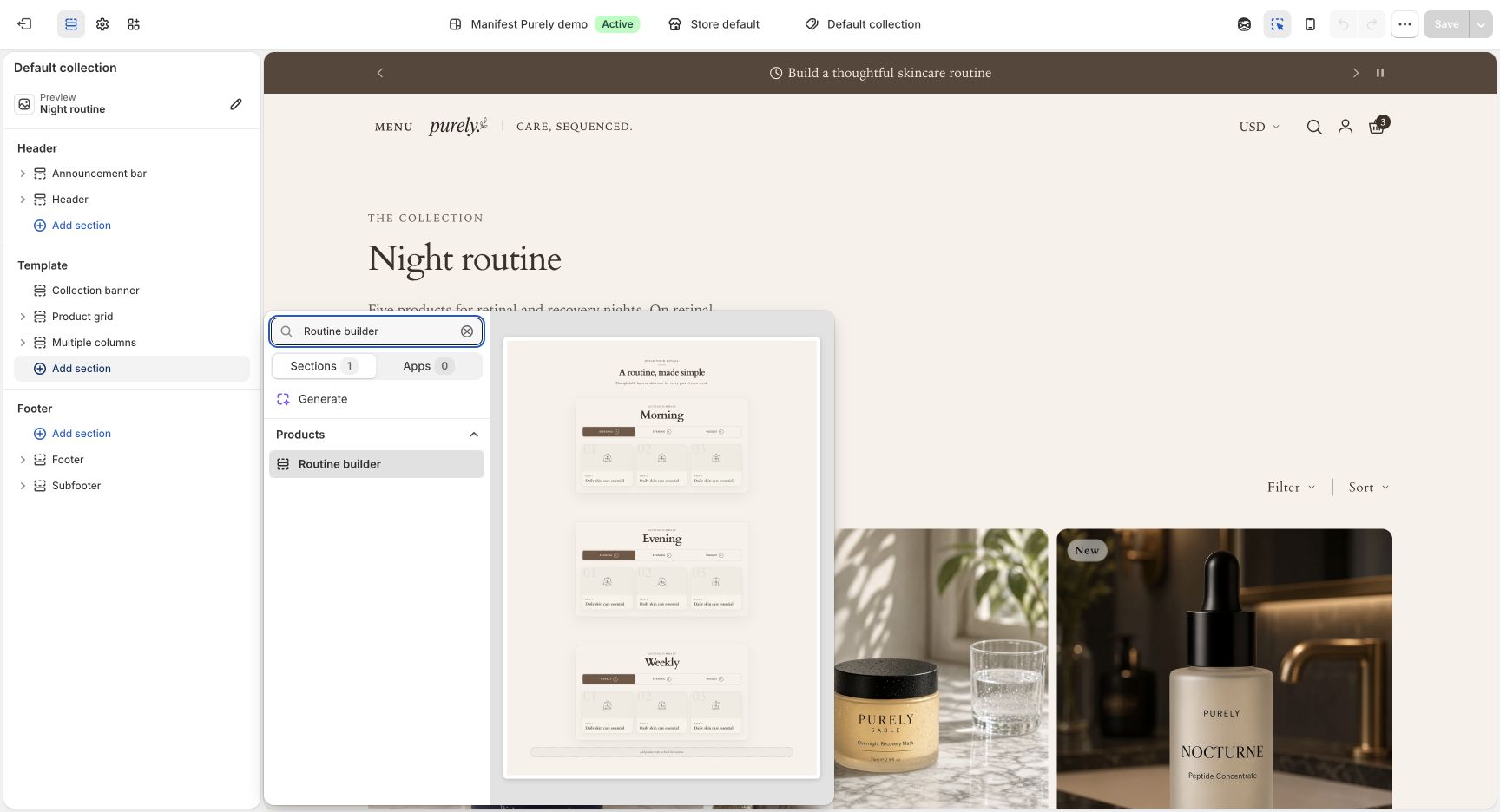
- Under Template, select Add section → Routine builder. The supplied concern template may already contain one; configure that section instead of adding a duplicate.
- Set Step source → Step blocks (same on every product).
- Add a Routine tab for each schedule, then Product steps inside those tabs.
- Select each Product, write its Step name and Usage guidance, and drag the blocks into application order.
- Keep selected products appropriate for the collection. Changing collection membership, filtering, or sorting does not update the builder’s manual Product pickers.
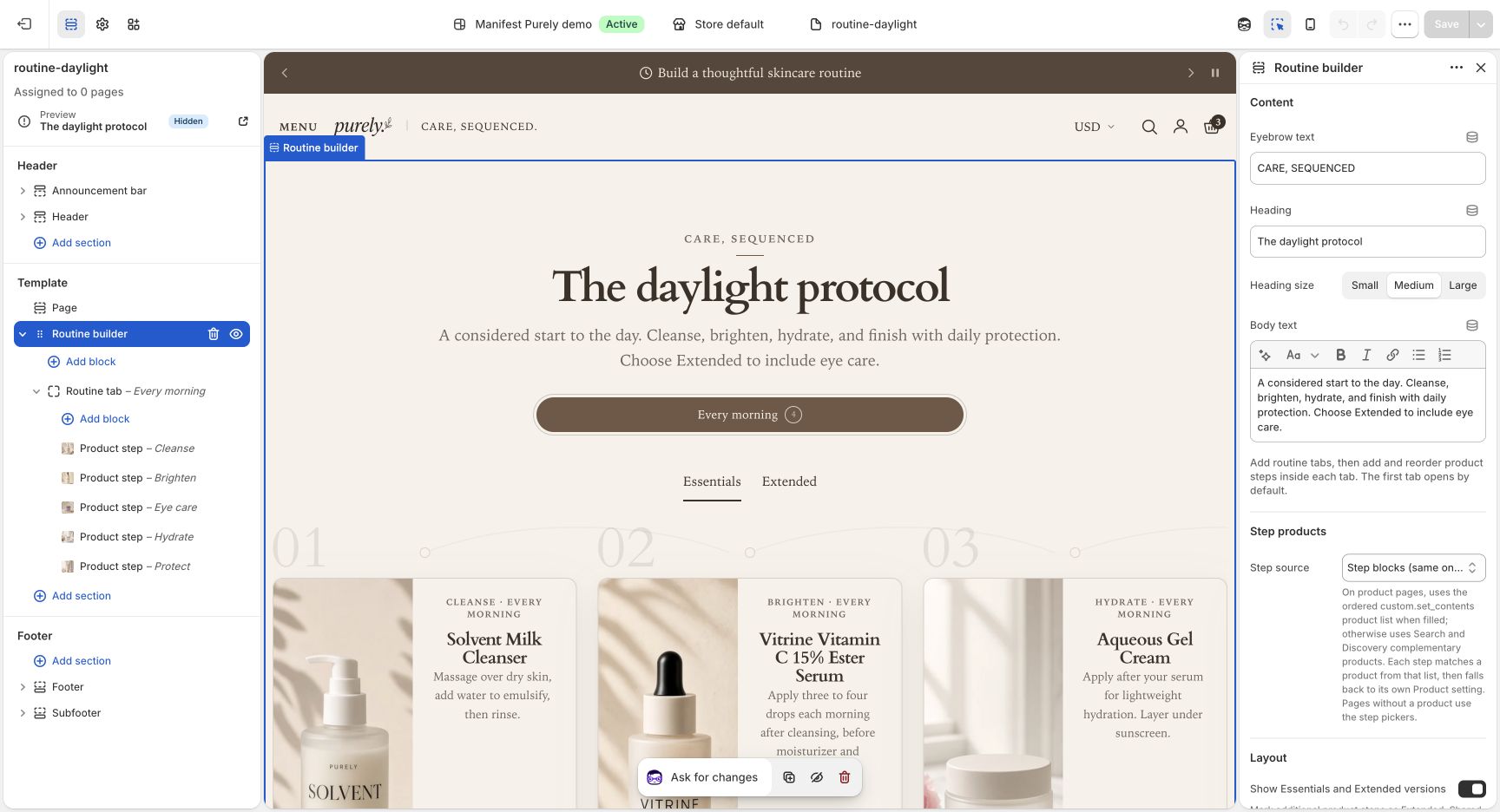
These are shared section controls. Use them inside the collection template you assigned in step 1.
3. Keep the grid and the routine distinct
The product grid follows the collection’s products, filtering, and sorting. The Routine builder shows your authored sequence. The same product can appear in both; only the builder supplies step instructions and a routine review.
A Routine library card elsewhere may use this collection for its preview. That preview still does not populate the builder. For a curated preview order, use manual collection sorting and keep the collection aligned with the builder’s distinct products.
4. Preview and publish the configuration
- Save the template and preview the actual assigned collection.
- Check each step, variant, tab, and routine review on desktop and mobile.
- Test the collection’s normal filtering and sorting as well; the routine should remain coherent.
- Open another collection using a different template and confirm its layout was not changed.
- Add or update the collection’s link in Content → Menus when it is ready for customers.
For a collection-only promotion, create and test the actual Shopify automatic discount before writing its condition in Offer message. A collection by itself does not create a discount.